

1. Start a job
Go to Jobs (cutshort.io/profile/employer-dashboard) and click Post a job. That opens cutshort.io/profile/job-setup.2. Fill in job details
On the Job details step:- Enter the Job title and Job role.
- Add Relevant skills. These also show on the job post that candidates see (preview is on the right).
- Click Add must-have skills only if you have a hard filter. Anyone who has not worked with that skill will not appear in your results. Use this sparingly.
- Fill in the rest: location, experience, salary, and the job description. The right side shows how the post will look to candidates.
3. Set key requirements
The next step is Key requirements. Cutshort uses these later to shortlist the most relevant candidates. A default list is created from your job description. Review it carefully. You can add, delete, or reorder the lines. Write anything you would expect to see on a resume — skills, kind of work done, team leading or management experience, college tier, industry or domain. Lock in the list and proceed.4. Review the invitation and go live
Your job is ready to receive applications. Review the invitation message, edit it if needed, and click Looks good.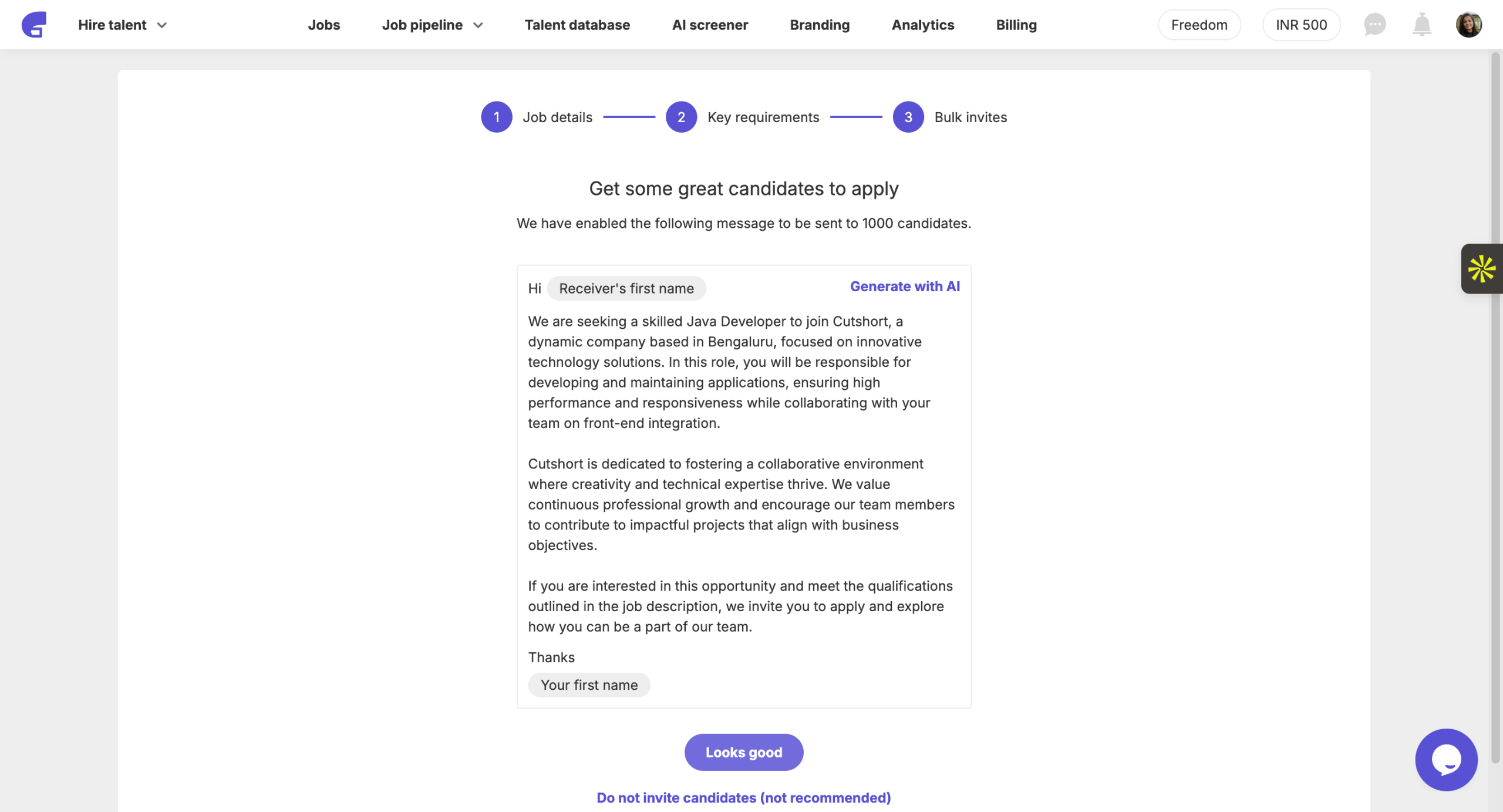 Cutshort then starts reaching out to matching candidates and inviting them to apply.
5. Edit the questionnaire
When you post a job, Cutshort auto-generates a Job questionnaire with 2–3 common questions. Edit it anytime from Job pipeline → the Applications stage → Questionnaire enabled. Use this to collect updated salary, location, and notice period — or custom details like visa status or experience in a specific kind of work.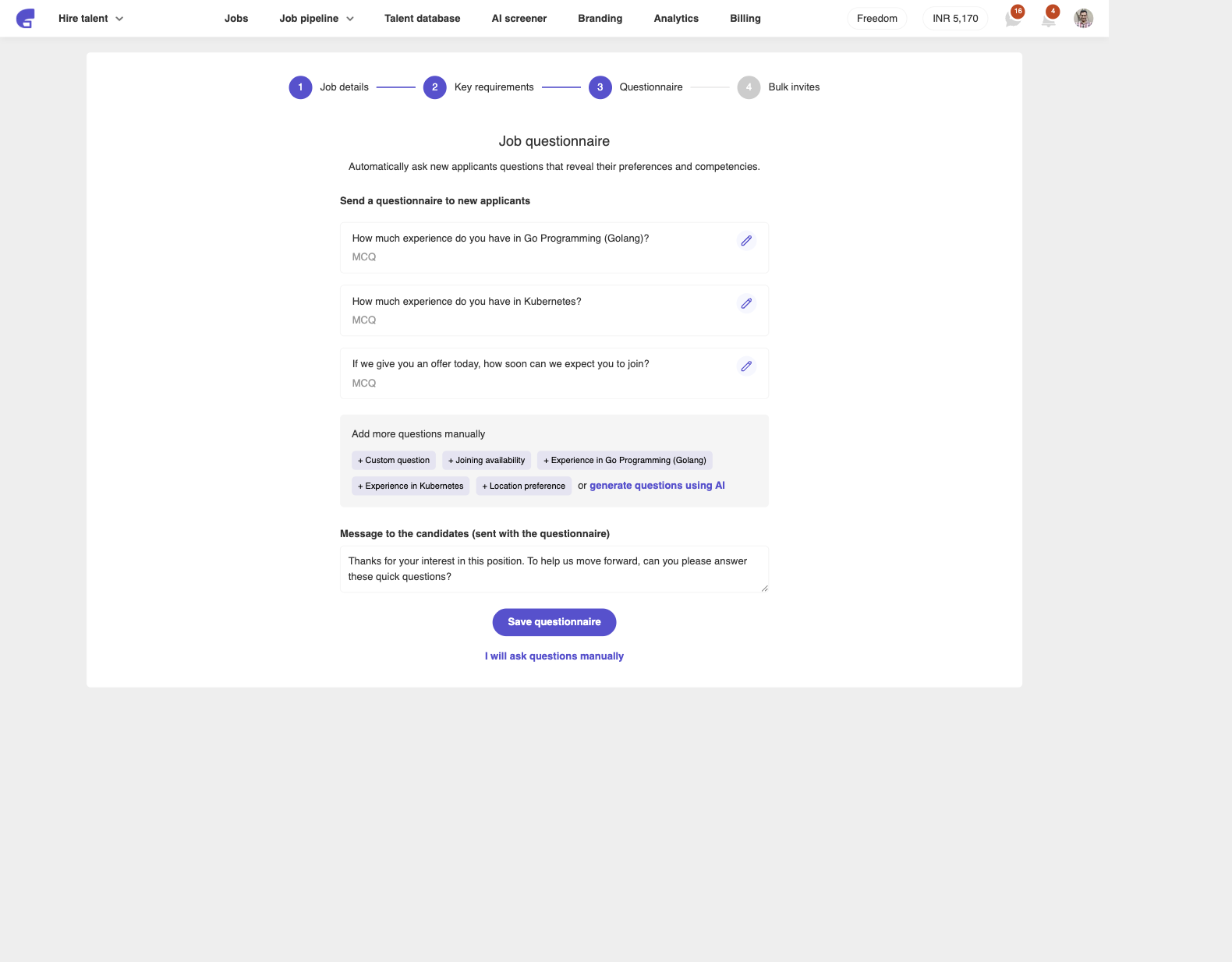 You can change the generated questions, add + Custom question, + Joining availability, + Location preference, or generate questions using AI. Click Save questionnaire when you are done.
6. Find the job and the pipeline
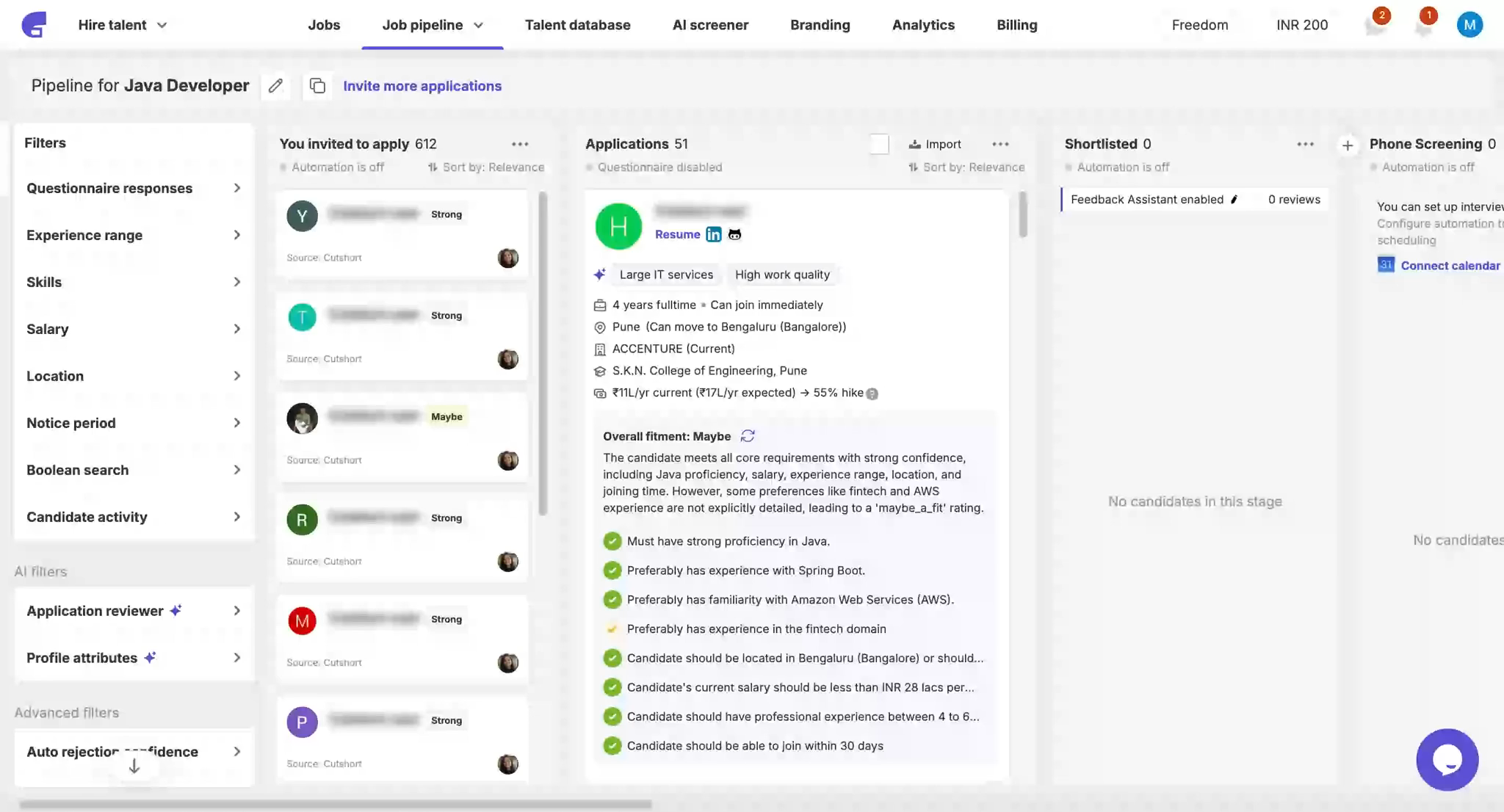
To see the job you just posted, open Jobs. Click it to view applications. After a few hours, Job pipeline shows:- Candidates you invited, on the first stage
- Candidates who applied, on the next stage
If something goes wrong
- Must-have skills emptied the pool — remove or relax them. Candidates without those skills are hidden from results.
- Key requirements look off — edit the default list before you proceed. You can still change criteria later from the job.
- No applications yet — wait a few hours after Looks good. Invites go out first; applied candidates show on the next pipeline stage.
- Cannot find the job — open Jobs. The new post appears there.
- Need different questionnaire questions — open Job pipeline → Applications → Questionnaire enabled, then edit and Save questionnaire.