

Before you start
You need:- An Ashby Organization Admin account
- Permission to create an API key (included on Ashby Foundations and above)
1. Create an API key in Ashby
- In Ashby, go to Admin → Integrations → API Keys.
- Click + New.
- Name it something like
Cutshort. You can leave Integration Partner blank. - Click Create API Key.
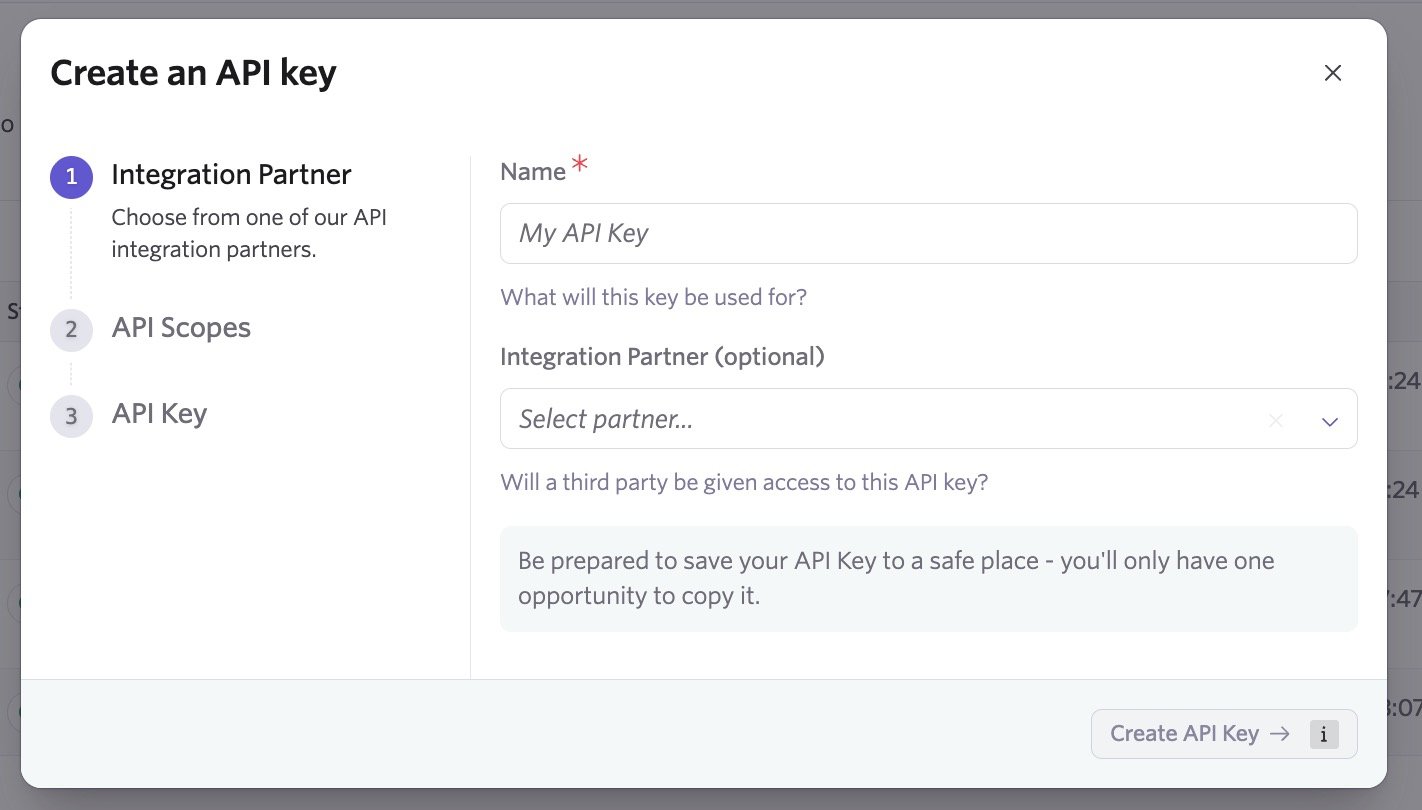
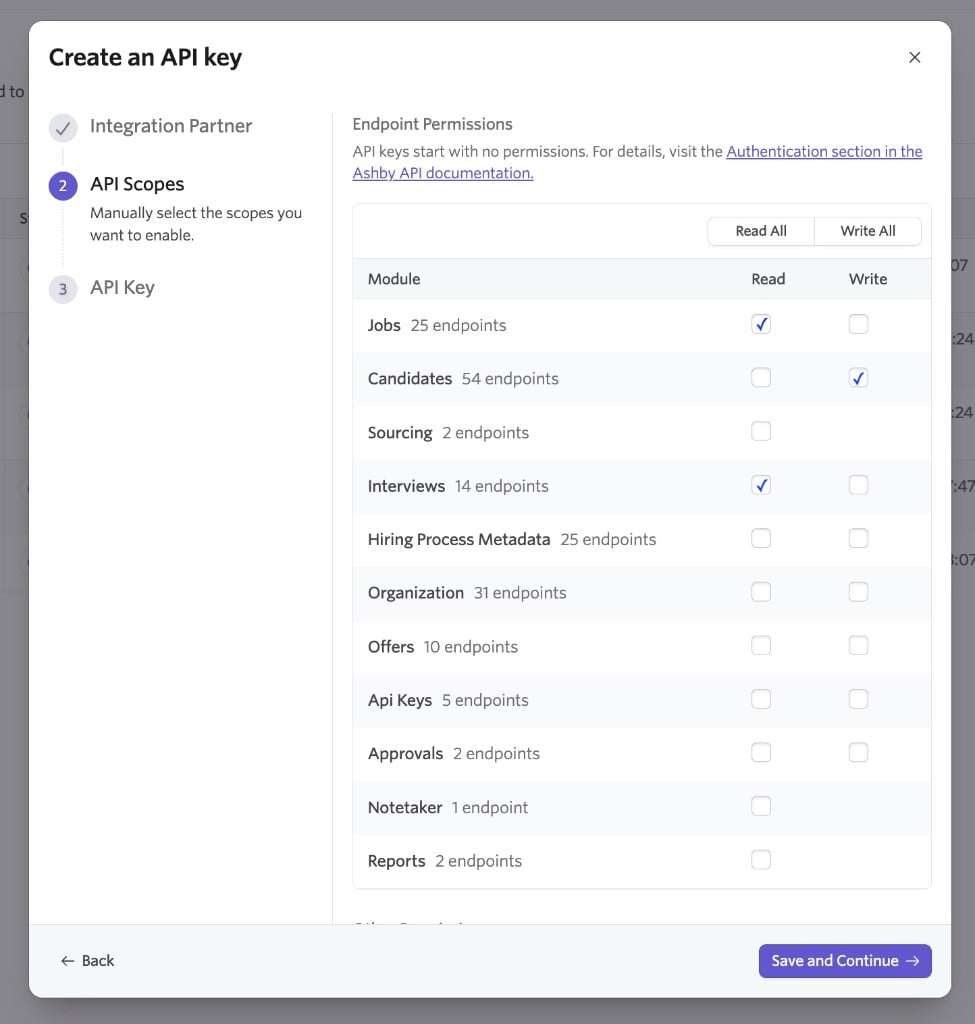
- On API Scopes, tick only these three boxes. Leave the rest off.
- Jobs → Read — so that you can see your ATS jobs in Cutshort
- Interviews → Read — so that you can pick a stage where you want to export candidates from Cutshort
- Candidates → Write — so that Cutshort can export candidates to your chosen job and stage
- Click Save and Continue.
- Copy the key immediately. Ashby shows it only once.
2. Add the key in Cutshort
- On Cutshort, open Settings → Integrations (cutshort.io/profile/hiring-settings/integrations).
- Under ATS integrations, choose Ashby.
- Paste the key in API key.
- Click Connect ATS.
3. Import a job from Ashby
After Ashby is connected, Jobs (cutshort.io/profile/employer-dashboard) shows Import from ATS.
- Click Import from ATS.
- Choose a job from Ashby.
- Choose whether to send applications back automatically:
- Yes, send only matching applications (recommended)
- Yes, send all applications
- No. I will do manual export.
- If automatic export is on, choose which Ashby stage new applications should land in.
- Click Continue and finish job setup on Cutshort.
4. Export candidates from the pipeline
On any job pipeline (cutshort.io/profile/workflow), open a stage (click Automation is off or the stage name).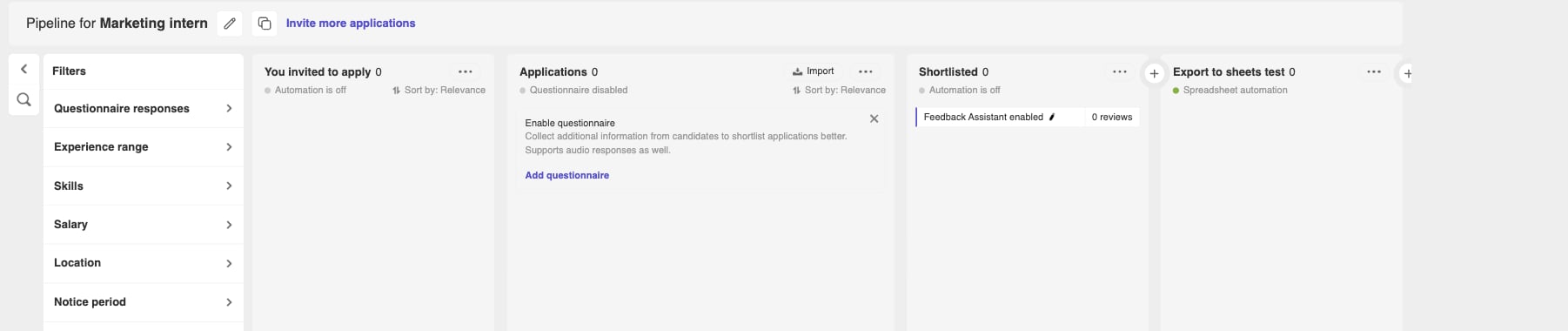
What Cutshort sends to Ashby
When a candidate is exported, Cutshort creates them on the Ashby job and attaches their resume. These fields are set:- Name
- Phone (if we have it)
- Source / tag — Cutshort
- Stage — the Ashby interview stage you selected
- Summary — experience, current and expected salary (INR), notice period, and the application highlight when available
- Resume file
If something goes wrong
- Jobs list, then “Could not connect” after you pick a job — turn on Interviews → Read on the key, save, then try Import again.
- Export shows failed — turn on Candidates → Write, and check the stage still points at the right Ashby job.
- Need to rotate the key — create a new key with the same three boxes ticked, then Reconnect in Cutshort.