> ## Documentation Index
> Fetch the complete documentation index at: https://docs.cutshort.io/llms.txt
> Use this file to discover all available pages before exploring further.
# How do I connect Cutshort with Ashby?
> Connect Ashby with an API key so you can import jobs and send candidates from Cutshort to Ashby.
Connect Ashby with an API key. After that you can import an Ashby job into Cutshort and export candidates back to that job.
You must be an **Ashby Organization Admin** to create or edit API keys. Ashby documents this in [How do I generate an API key?](https://docs.ashbyhq.com/how-do-i-generate-an-api-key)
## Before you start
You need:
* An Ashby Organization Admin account
* Permission to create an API key (included on Ashby Foundations and above)
If you do not see **Admin** → **Integrations** → **API Keys**, ask an Ashby admin to create the key for you.
## 1. Create an API key in Ashby
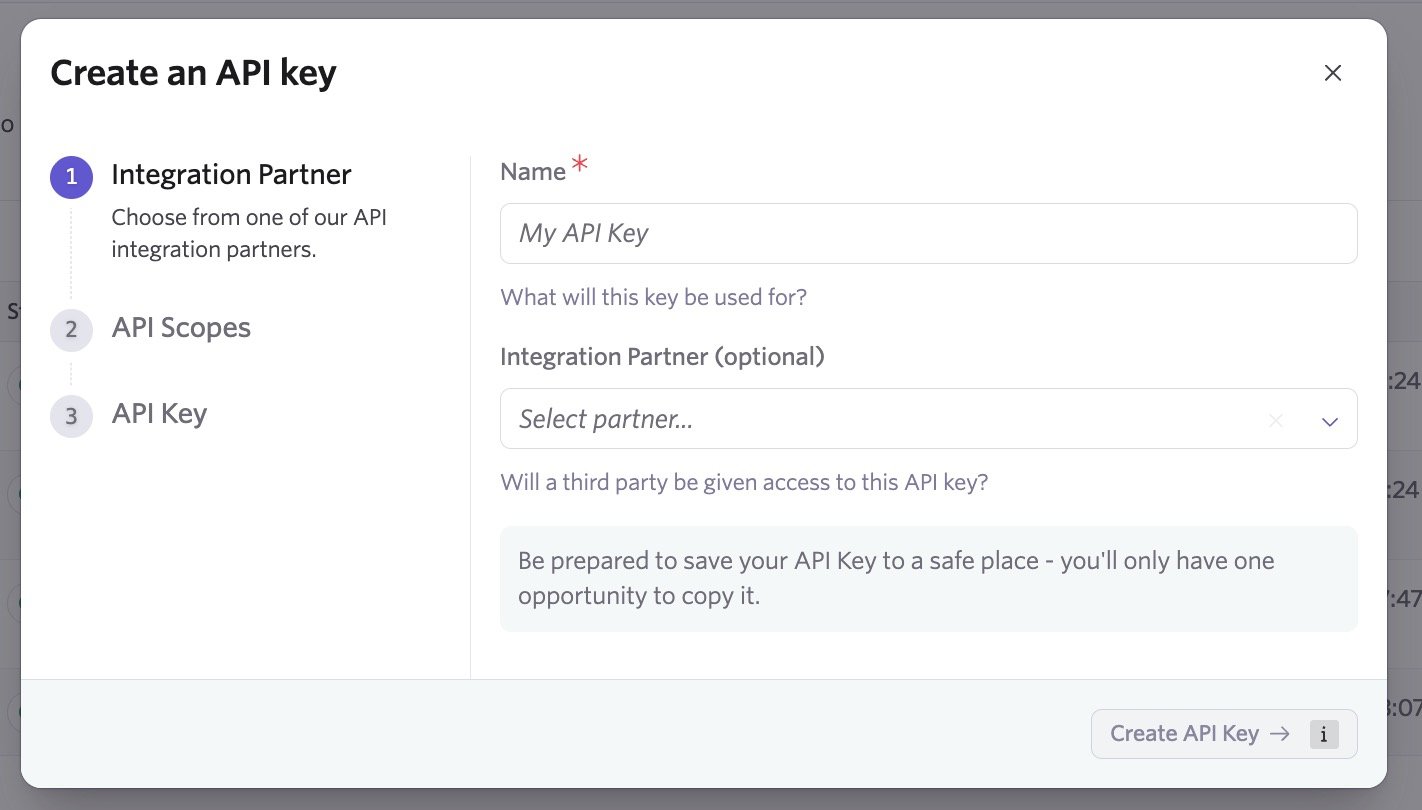
1. In Ashby, go to **Admin** → **Integrations** → **API Keys**.
2. Click **+ New**.
3. Name it something like `Cutshort`. You can leave **Integration Partner** blank.
4. Click **Create API Key**.
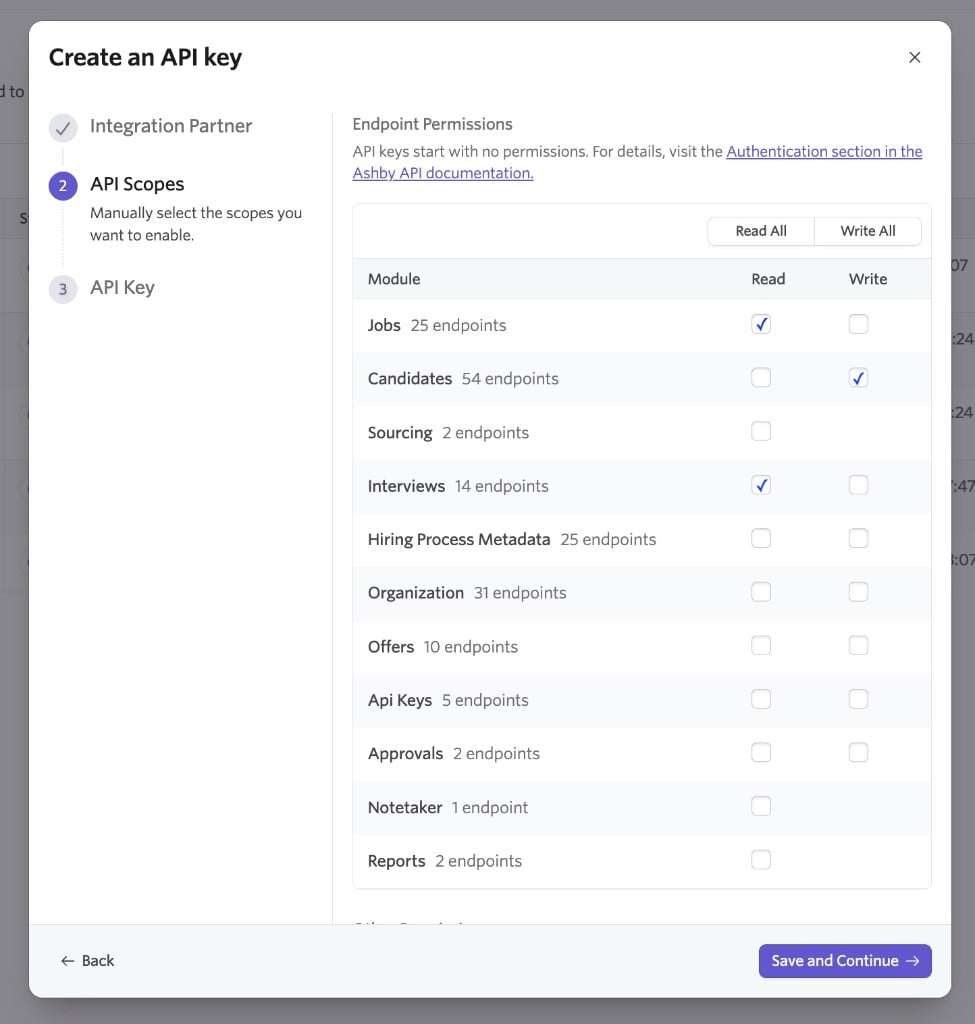
 5. On **API Scopes**, tick **only** these three boxes. Leave the rest off.
* **Jobs** → **Read** — so that you can see your ATS jobs in Cutshort
* **Interviews** → **Read** — so that you can pick a stage where you want to export candidates from Cutshort
* **Candidates** → **Write** — so that Cutshort can export candidates to your chosen job and stage
6. Click **Save and Continue**.
7. Copy the key immediately. Ashby shows it only once.
5. On **API Scopes**, tick **only** these three boxes. Leave the rest off.
* **Jobs** → **Read** — so that you can see your ATS jobs in Cutshort
* **Interviews** → **Read** — so that you can pick a stage where you want to export candidates from Cutshort
* **Candidates** → **Write** — so that Cutshort can export candidates to your chosen job and stage
6. Click **Save and Continue**.
7. Copy the key immediately. Ashby shows it only once.
 ## 2. Add the key in Cutshort
1. On Cutshort, open **Settings** → **Integrations** ([cutshort.io/profile/hiring-settings/integrations](https://cutshort.io/profile/hiring-settings/integrations)).
2. Under **ATS integrations**, choose **Ashby**.
3. Paste the key in **API key**.
4. Click **Connect ATS**.
When it works, you will see **Ashby connected**. You can **Reconnect** or **Delete** the key from the same card.
You can also paste the same key from a job pipeline stage: open the stage → choose **Export to ATS** → **Ashby**.
## 3. Import a job from Ashby
After Ashby is connected, **Jobs** ([cutshort.io/profile/employer-dashboard](https://cutshort.io/profile/employer-dashboard)) shows **Import from ATS**.
## 2. Add the key in Cutshort
1. On Cutshort, open **Settings** → **Integrations** ([cutshort.io/profile/hiring-settings/integrations](https://cutshort.io/profile/hiring-settings/integrations)).
2. Under **ATS integrations**, choose **Ashby**.
3. Paste the key in **API key**.
4. Click **Connect ATS**.
When it works, you will see **Ashby connected**. You can **Reconnect** or **Delete** the key from the same card.
You can also paste the same key from a job pipeline stage: open the stage → choose **Export to ATS** → **Ashby**.
## 3. Import a job from Ashby
After Ashby is connected, **Jobs** ([cutshort.io/profile/employer-dashboard](https://cutshort.io/profile/employer-dashboard)) shows **Import from ATS**.
 1. Click **Import from ATS**.
2. Choose a job from Ashby.
3. Choose whether to send applications back automatically:
* **Yes, send only matching applications (recommended)**
* **Yes, send all applications**
* **No. I will do manual export.**
4. If automatic export is on, choose which Ashby stage new applications should land in.
5. Click **Continue** and finish job setup on Cutshort.
Jobs you have already imported are marked **Already imported**.
## 4. Export candidates from the pipeline
On any job pipeline ([cutshort.io/profile/workflow](https://cutshort.io/profile/workflow)), open a stage (click **Automation is off** or the stage name).
1. Click **Import from ATS**.
2. Choose a job from Ashby.
3. Choose whether to send applications back automatically:
* **Yes, send only matching applications (recommended)**
* **Yes, send all applications**
* **No. I will do manual export.**
4. If automatic export is on, choose which Ashby stage new applications should land in.
5. Click **Continue** and finish job setup on Cutshort.
Jobs you have already imported are marked **Already imported**.
## 4. Export candidates from the pipeline
On any job pipeline ([cutshort.io/profile/workflow](https://cutshort.io/profile/workflow)), open a stage (click **Automation is off** or the stage name).
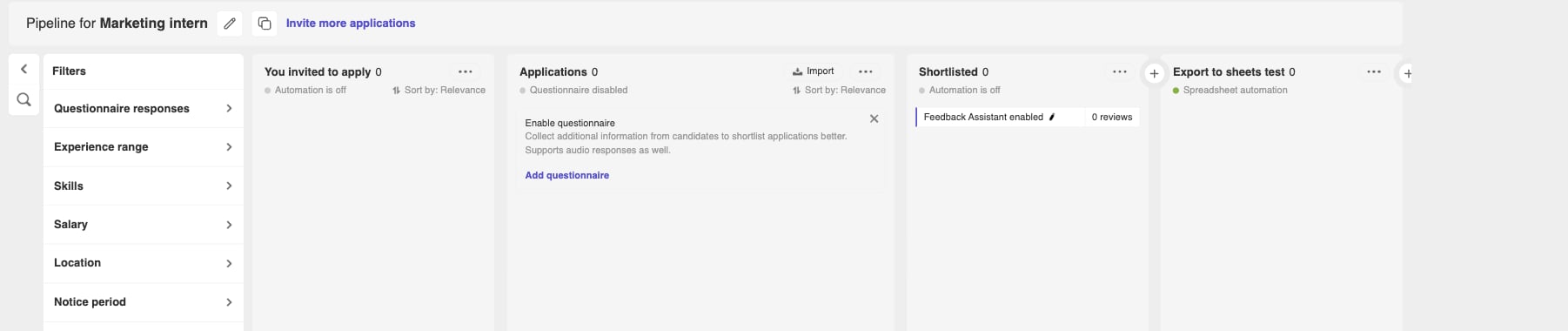 Set the action to **Export to ATS**, choose **Ashby**, pick the Ashby **Jobs** and **Stages**, then click **Update stage**.
Candidates who enter that stage are created on that Ashby job.
On the **Applications** stage you can also choose to send only matching applications or all applications.
## What Cutshort sends to Ashby
When a candidate is exported, Cutshort creates them on the Ashby job and attaches their resume. These fields are set:
* **Name**
* **Email**
* **Phone** (if we have it)
* **Source** / tag — Cutshort
* **Stage** — the Ashby interview stage you selected
* **Summary** — experience, current and expected salary (INR), notice period, and the application highlight when available
* **Resume** file
Cutshort does not change your existing Ashby candidates or interview plans.
## If something goes wrong
* **Jobs list, then “Could not connect” after you pick a job** — turn on **Interviews** → **Read** on the key, save, then try Import again.
* **Export shows failed** — turn on **Candidates** → **Write**, and check the stage still points at the right Ashby job.
* **Need to rotate the key** — create a new key with the same three boxes ticked, then **Reconnect** in Cutshort.
Something else? Chat with us on [cutshort.io](https://cutshort.io).
## Related
* [How do I post jobs to build a top candidate pipeline quickly?](/employers/post-job-build-pipeline)
* [How do I connect Cutshort with Breezy HR?](/employers/connect-breezy)
* [How do I connect Cutshort with Greenhouse ATS](/employers/connect-greenhouse)
* [How do I connect Cutshort with Lever.co?](/employers/connect-lever)
* [How do I integrate Workable ATS with Cutshort pipeline?](/employers/integrate-workable)
Set the action to **Export to ATS**, choose **Ashby**, pick the Ashby **Jobs** and **Stages**, then click **Update stage**.
Candidates who enter that stage are created on that Ashby job.
On the **Applications** stage you can also choose to send only matching applications or all applications.
## What Cutshort sends to Ashby
When a candidate is exported, Cutshort creates them on the Ashby job and attaches their resume. These fields are set:
* **Name**
* **Email**
* **Phone** (if we have it)
* **Source** / tag — Cutshort
* **Stage** — the Ashby interview stage you selected
* **Summary** — experience, current and expected salary (INR), notice period, and the application highlight when available
* **Resume** file
Cutshort does not change your existing Ashby candidates or interview plans.
## If something goes wrong
* **Jobs list, then “Could not connect” after you pick a job** — turn on **Interviews** → **Read** on the key, save, then try Import again.
* **Export shows failed** — turn on **Candidates** → **Write**, and check the stage still points at the right Ashby job.
* **Need to rotate the key** — create a new key with the same three boxes ticked, then **Reconnect** in Cutshort.
Something else? Chat with us on [cutshort.io](https://cutshort.io).
## Related
* [How do I post jobs to build a top candidate pipeline quickly?](/employers/post-job-build-pipeline)
* [How do I connect Cutshort with Breezy HR?](/employers/connect-breezy)
* [How do I connect Cutshort with Greenhouse ATS](/employers/connect-greenhouse)
* [How do I connect Cutshort with Lever.co?](/employers/connect-lever)
* [How do I integrate Workable ATS with Cutshort pipeline?](/employers/integrate-workable)